Your first contest entry, start to finish, in about ten minutes — no crypto experience required.
Get Phantom
1 min
Create a wallet
1 min
Create your account
2 min
Buy $25 of USDC
3 min
Enter a contest
3 min
Phantom is a free crypto wallet used by millions of people. It holds your money on your own device — not on our servers, and not on an exchange. You will use it twice: once to buy your entry money, and once to approve your contest entry.
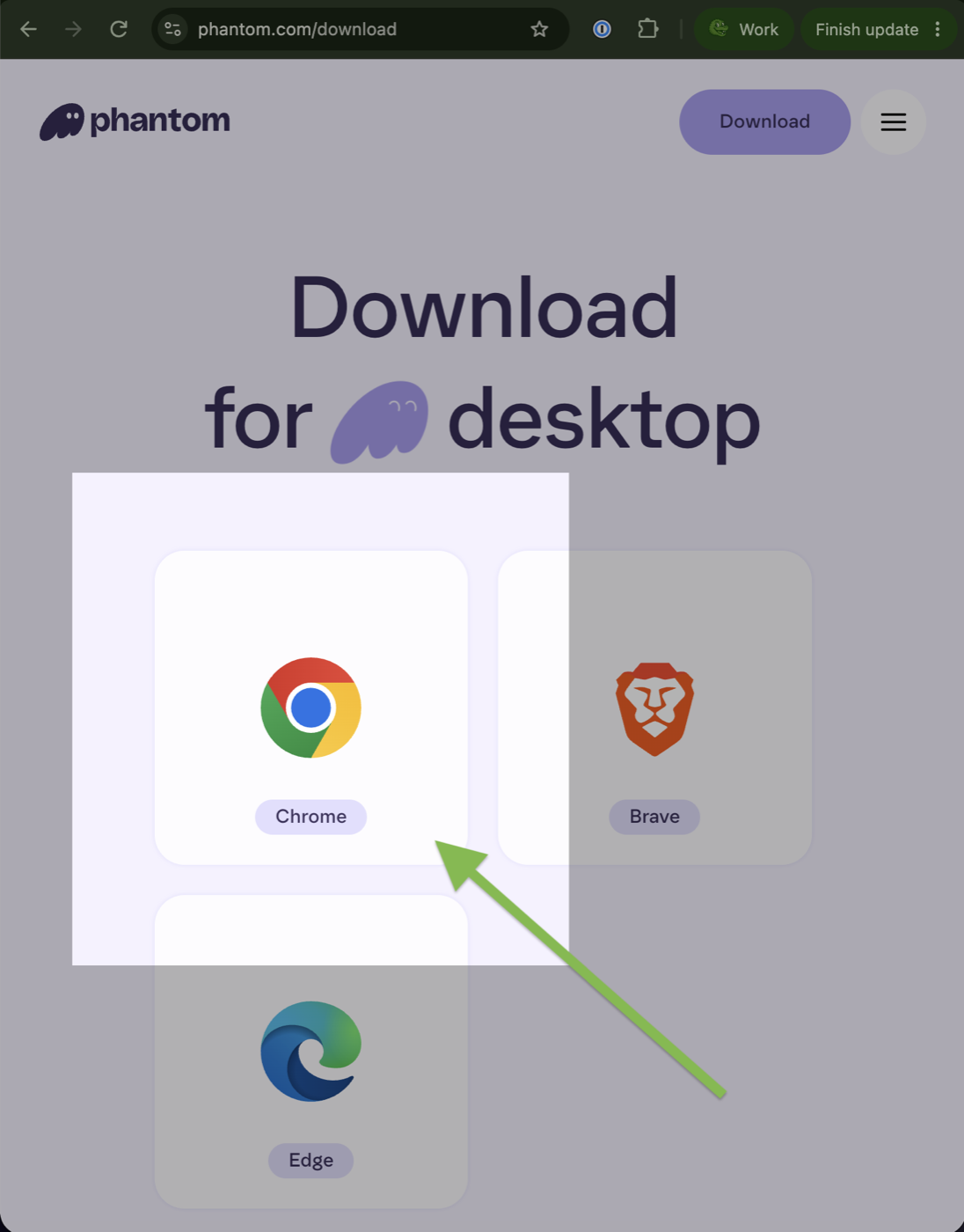
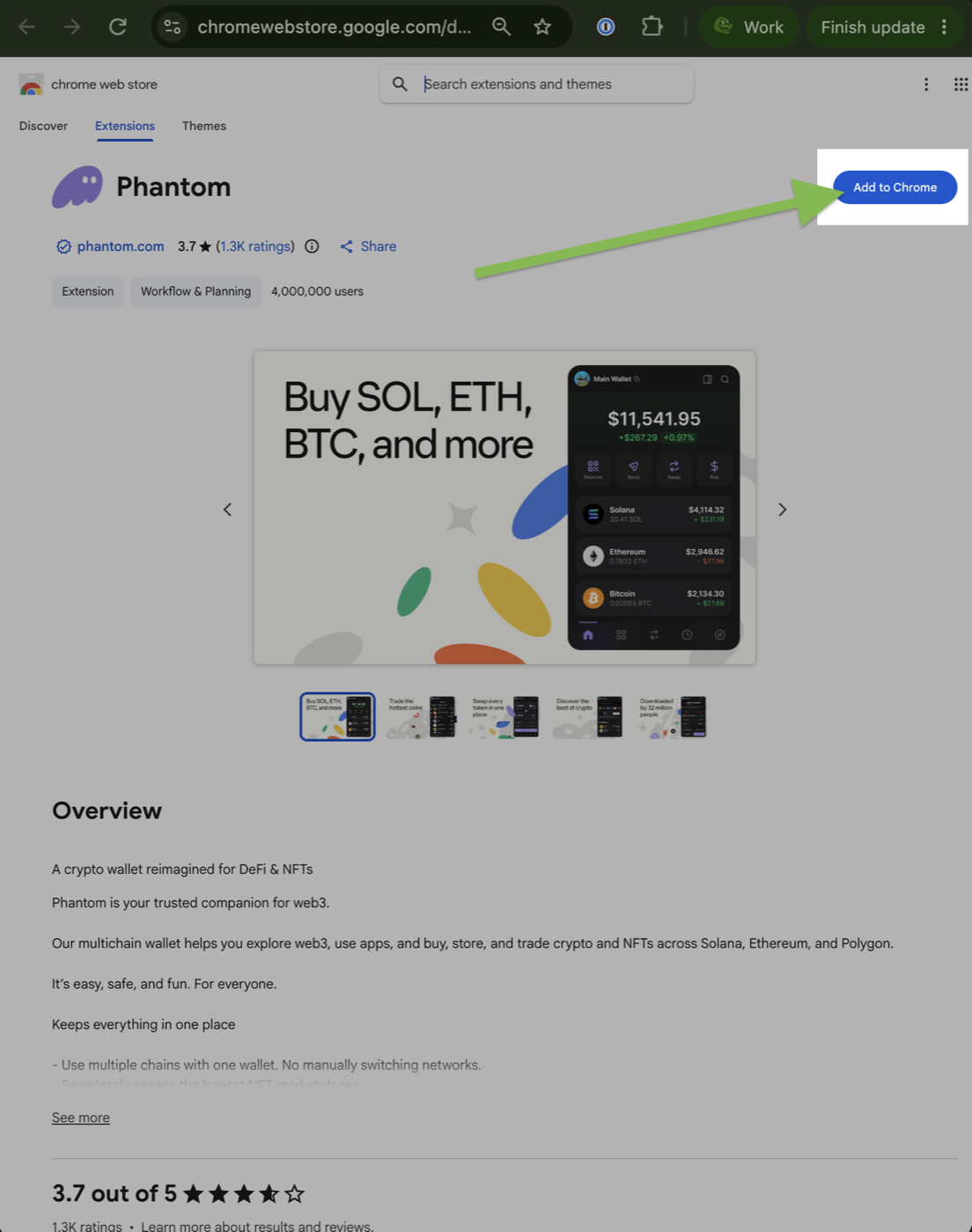
Get it from the official site only: phantom.com/download. Pick your browser — Chrome is shown below — and add the extension from the official listing. On a phone, the same page routes you to the App Store or Google Play, and every step below looks the same in the app.
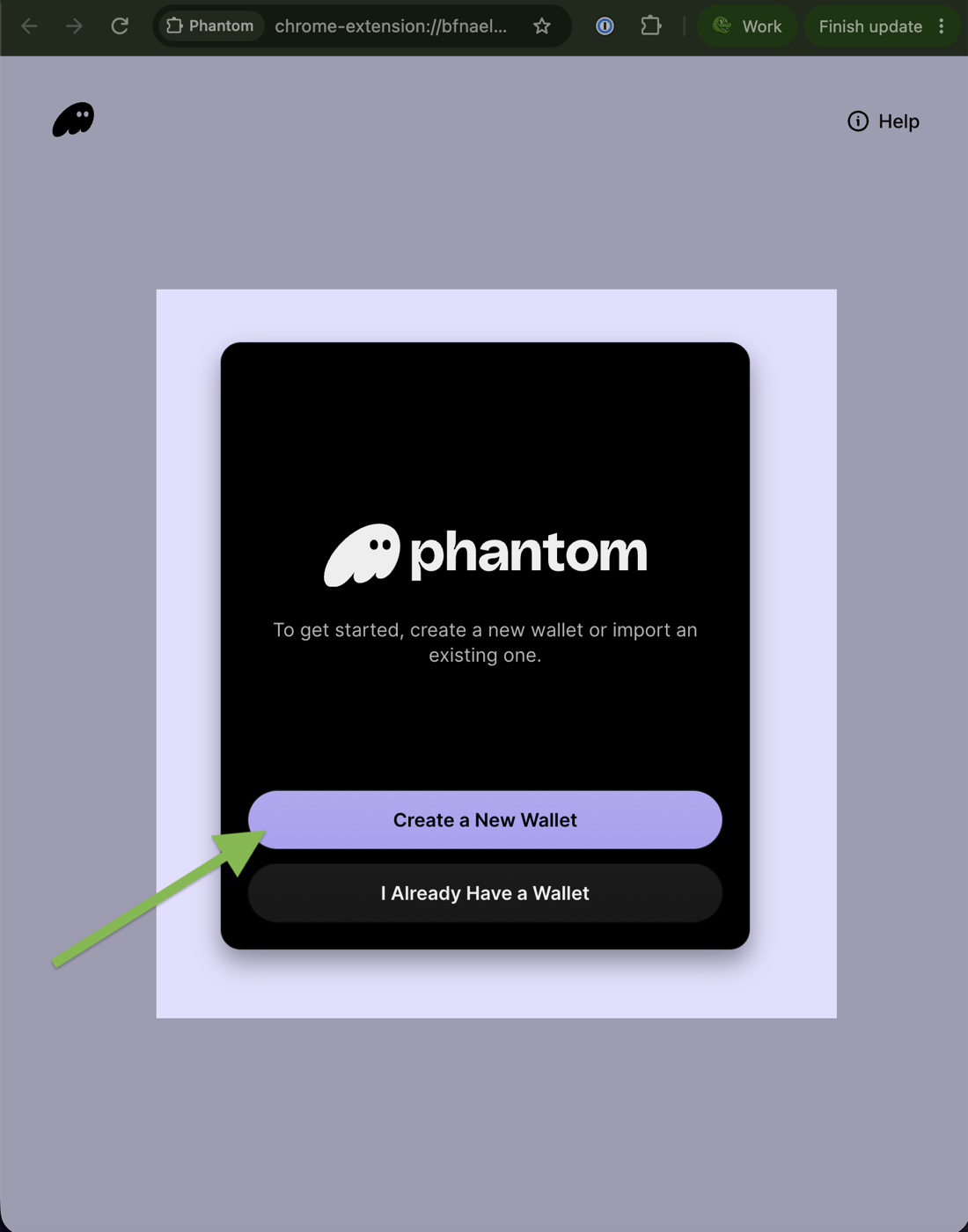
When the extension opens, choose Create a New Wallet, then Continue with Email. Your wallet is created from your email or Google/Apple account and stored securely across multiple factors — if you ever lose this computer, you recover it with that account and a 4-digit PIN. There are no seed phrases to copy down on this path, and nothing to lose.
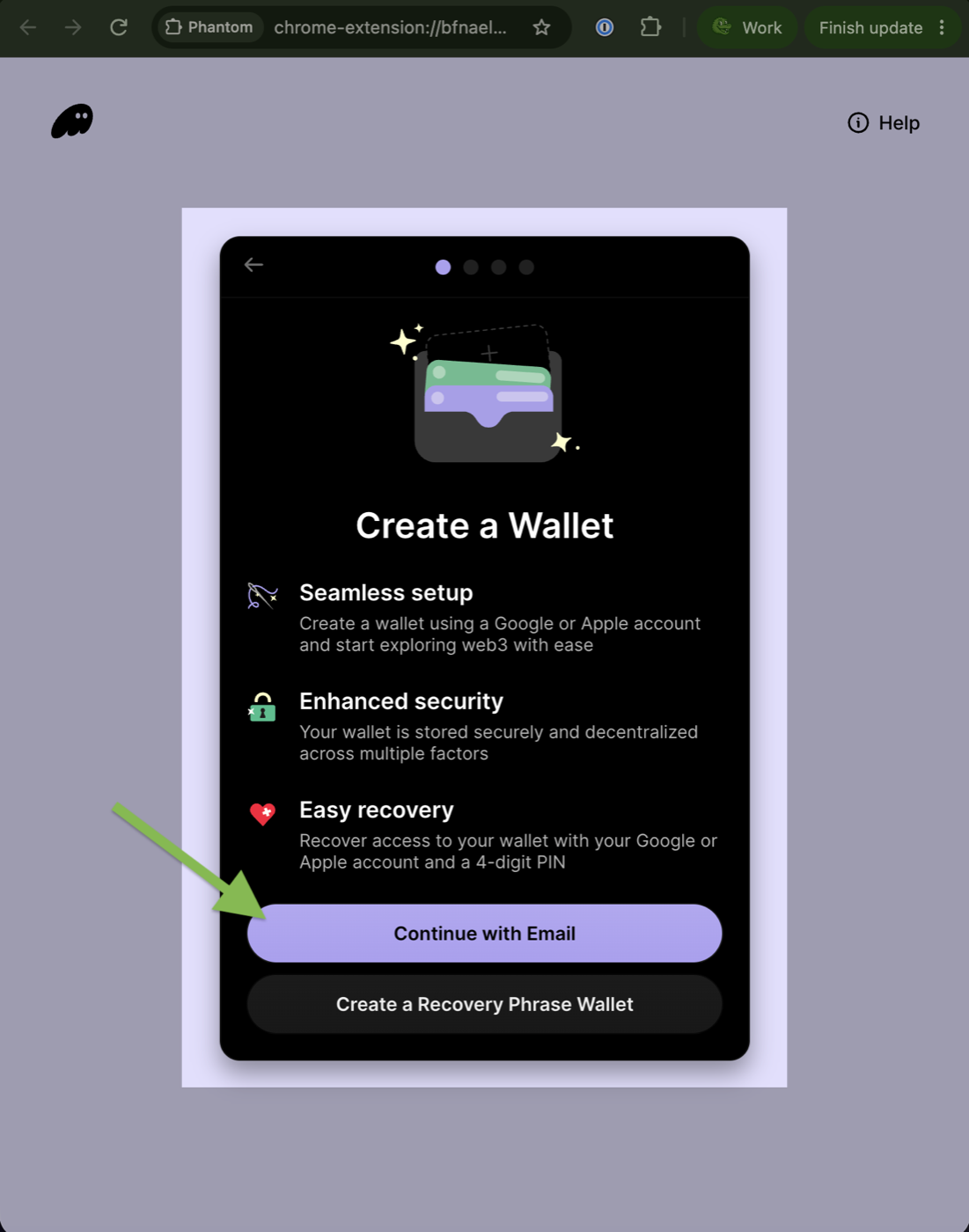
Prefer the classic way?
Create a Recovery Phrase Wallet gives you a 12-word Secret Recovery Phrase instead. If you choose it: write the words on paper, never share them, and know they are the only backup — whoever has the words has the money.
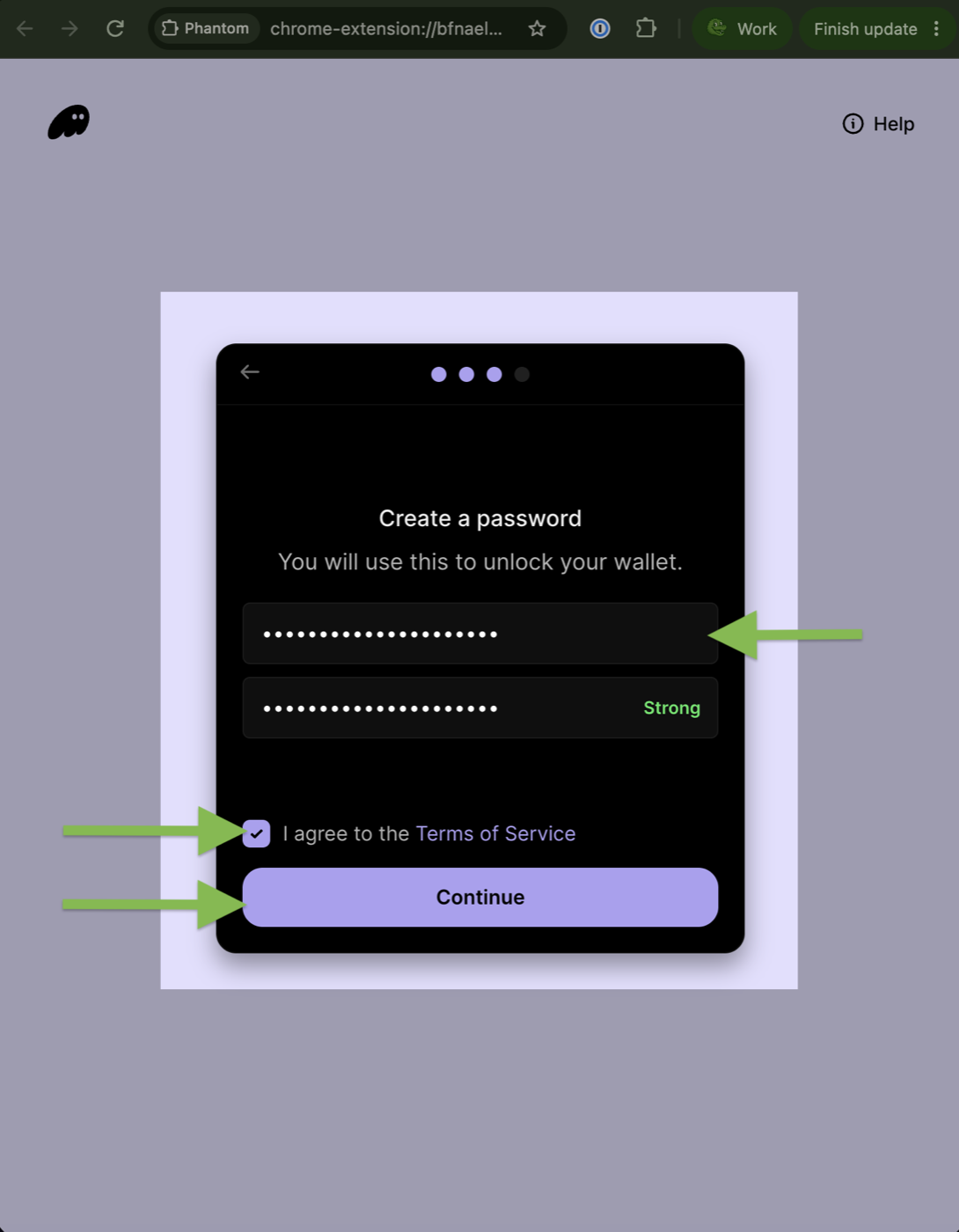
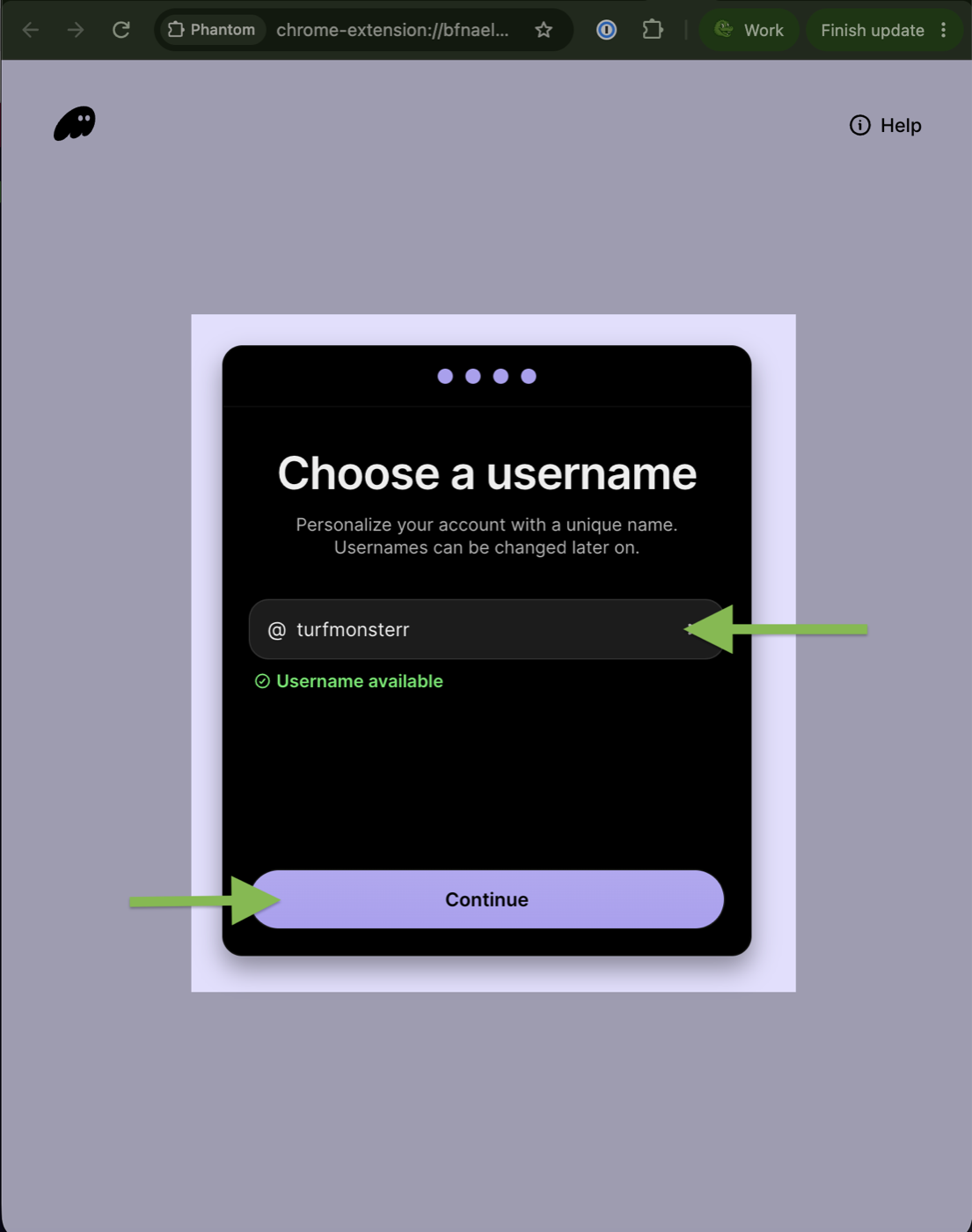
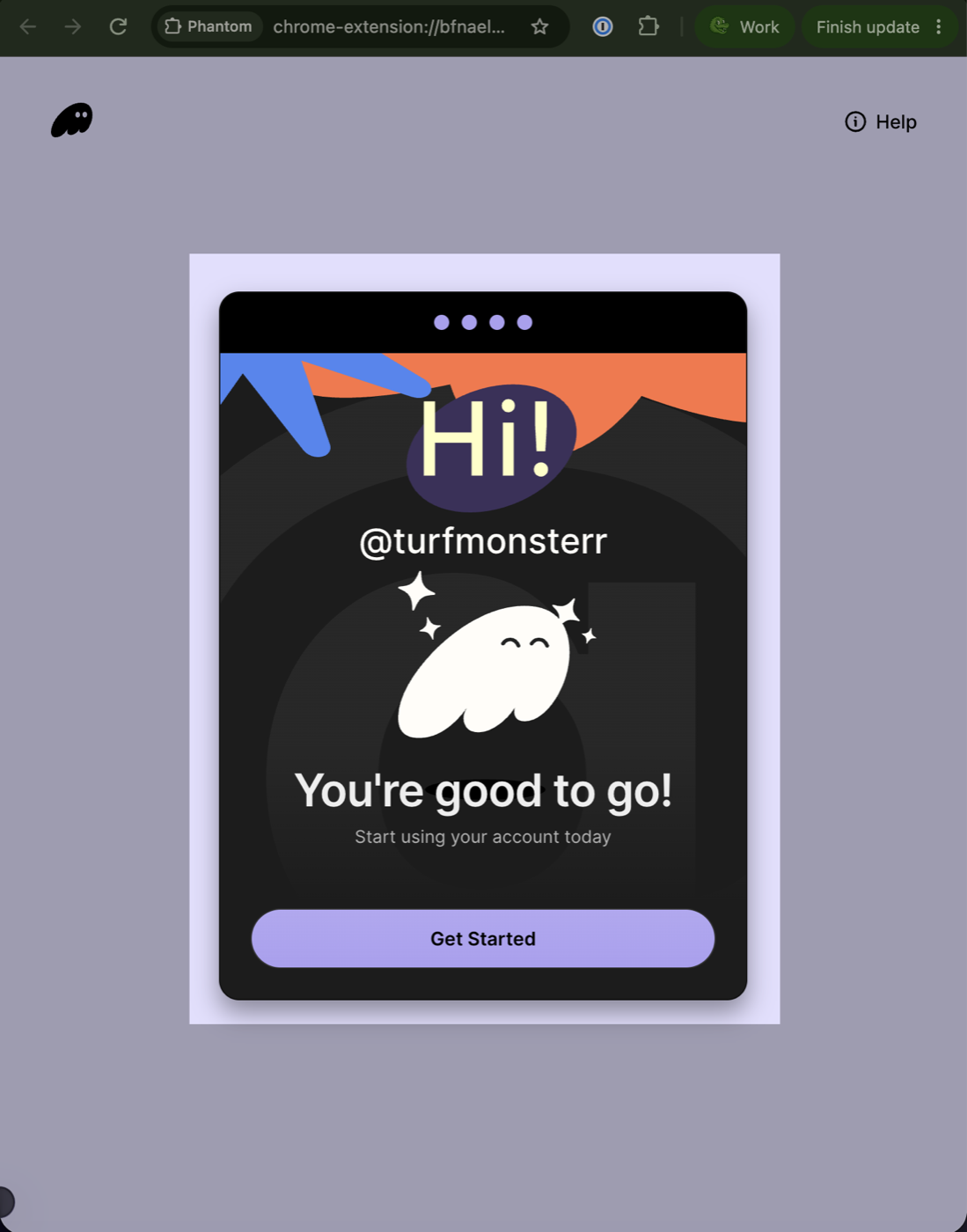
🔑 Three safety rules
Contests are paid in USDC, a digital dollar: one USDC is worth one U.S. dollar, and it is backed one-for-one by real dollar reserves. You can buy it inside Phantom with Apple Pay or a debit card — no exchange account needed.
Expect roughly $20 of USDC to arrive from a $25 purchase — the difference is MoonPay’s card-processing fee, which goes to MoonPay, not to us. Twenty dollars covers a full contest entry, so one purchase is all you need to play. Your card statement will show the charge from MoonPay.
Already own crypto?
Skip MoonPay. Withdraw USDC from Coinbase, Kraken, or any exchange straight to your Phantom address — just be sure to choose the Solana network when you withdraw. Tap your wallet address at the top of Phantom to copy it.
That last point is worth repeating: entering a contest is a single transfer of the exact entry fee. Turf Monster never asks for an open-ended spending approval, and your USDC stays in your own wallet until the moment you enter. You can verify every contest’s funds on our Proof of Reserves page.
$25 is MoonPay’s minimum card purchase. Their processing fee takes roughly $5, and about $20 of USDC lands in your wallet — enough to cover a $19 entry.
Yes. Signing in is a free message signature, not a payment. Money moves only when you confirm a contest entry, and each entry moves exactly the fee shown — our About page explains the on-chain design in detail.
Winnings are paid in USDC straight to your wallet. From Phantom you can sell USDC back to your card through MoonPay, or send it to an exchange like Coinbase and withdraw to your bank.
Email alex@turfmonster.media and a human will help you through it.
Turf Monster is a skill-based game, and paid contests involve real money. Play with money you can afford to lose, and read our Responsible Gaming and State Eligibility pages before you enter.
We sent a confirmation link to (your current address). Click the link in that email to confirm changing your email to . Your email won't change until you do — the link expires in 30 minutes.
Try again in .
We emailed a one-tap sign-in link. Check your email and Click the Magic Link to continue.
We just resent a one-tap sign-in link. Check your email and Click the Magic Link to continue.
Entry purchases are paused while we upgrade checkout. Your picks are saved.
You must be 18+ in OH. Enter your date of birth to confirm you're eligible — we only ask once.
We use your date of birth only to confirm eligibility. Skill-based contest age limits: 18+ most states; 19+ AL/NE; 21+ IA/MA/VA.
You have
before you can join your first contest.
The minimum age is
.
The minimum age is
.
You are not old enough to enter this contest yet.
Just your first name — we use it to address you in emails about your contests and payouts.
One last thing before your entry — just your first name, so we can address you in emails about your contests and payouts.
Turf Monster runs on the Solana public blockchain; you will need a wallet to enter contests and collect winnings.
Click to connect. Phantom will ask you to sign a message proving the wallet is yours — it does not move any funds.
Opens the Phantom app to sign. Don’t have it? Phantom will offer to install it.
Finish setting up Phantom in the new tab, then return here. We’ll detect it automatically.
Rather pay by card? Link a wallet first — an entry token needs somewhere to land.
Your account is secured by a Solana wallet.
Please sign in with wallet
Can’t access your wallet? Get help
will ask you to sign. This proves the wallet is yours — it does not move funds.
To keep this session, switch back to .
Pick how you'd like to fund your entry. More options are on the way.
USDC balance:
Entry tokens:
1 token = 1 contest entry. Your lineup is saved — pick how to pay.


To enter the contest you will need to fund your wallet with USDC, which is a form of digital dollars.
Drop an image or click to upload
PNG or JPG
For your security we didn't co-sign this transaction — it didn't match the entry we prepared, so nothing was submitted and your funds are safe. Please close this and try entering again. If it keeps happening, contact support.

 OH
OH